Roles & Permissions
Introduction
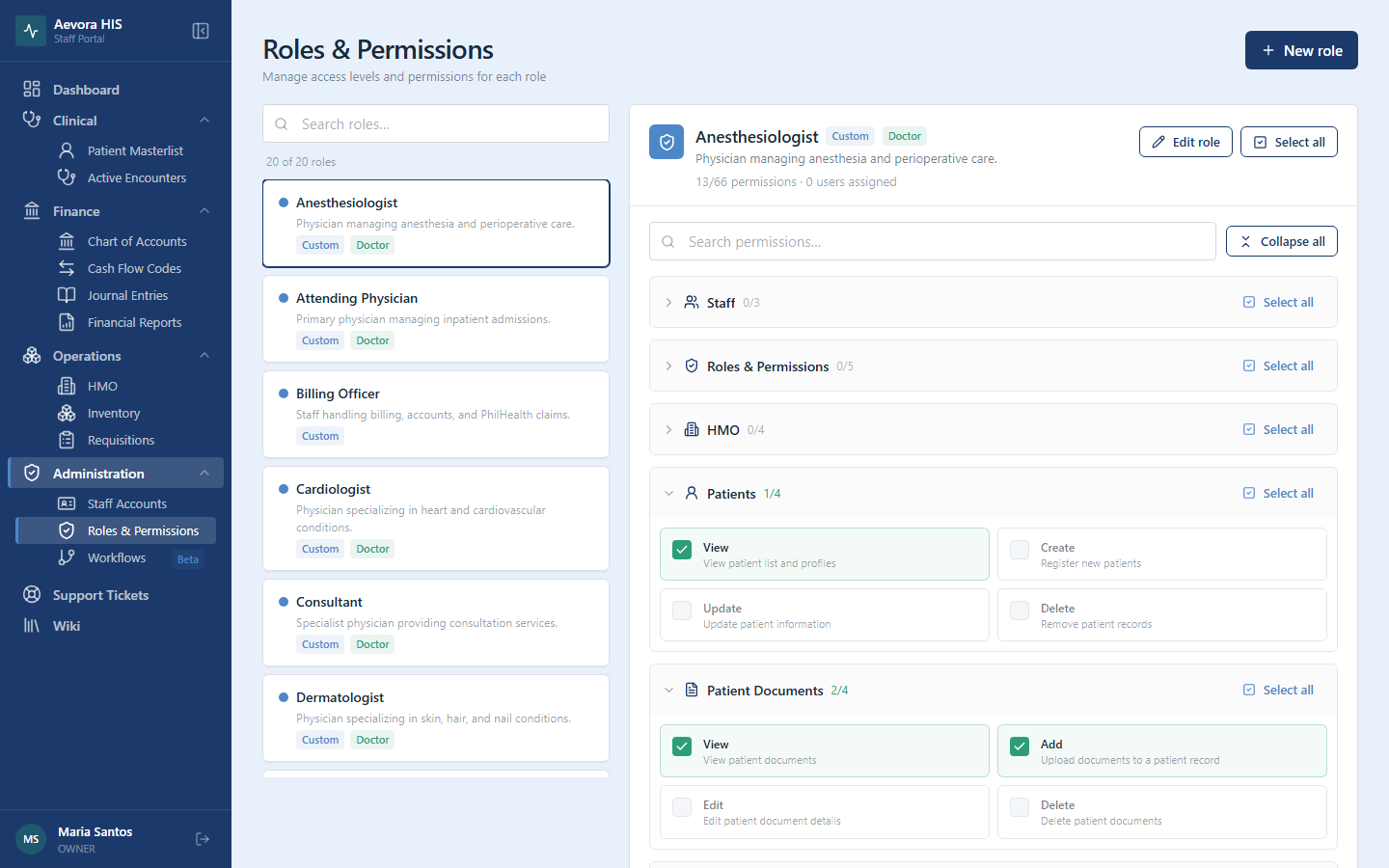
Section titled “Introduction”Aevora uses role-based access control (RBAC) to ensure every staff member can access exactly what their job requires — no more, no less. Every staff account is assigned one role, and that role determines which modules appear in the sidebar and which actions can be performed on each resource.
Key Concepts
Section titled “Key Concepts”How RBAC Works in Aevora
Section titled “How RBAC Works in Aevora”Access control is enforced at two layers:
- UI layer — modules not permitted by the role do not appear in the sidebar; buttons for unauthorized actions are hidden.
- API layer — every API request is checked against the authenticated user’s permissions. A user who bypasses the UI (e.g., via direct API calls) still receives a rejected request.
Removing an item from the sidebar alone would not prevent access — Aevora enforces permissions on the server, not just cosmetically in the UI.
System Roles vs. Custom Roles
Section titled “System Roles vs. Custom Roles”Aevora ships with exactly two system roles, which cannot be renamed, deleted, or have their permissions edited:
| Role | Purpose |
|---|---|
| OWNER | Assigned to the facility’s primary account holder. Has every permission in the catalog and bypasses department-level restrictions (e.g., can approve any requisition regardless of department). |
| UNASSIGNED | The fallback role staff are automatically moved to if their custom role is deleted. |
Every other role — Attending Physician, Head Nurse, Pharmacist, Billing Officer, or whatever your facility needs — is a custom role your facility creates and fully controls. There is no fixed catalog of preset job-title roles; you build the set that matches your organization.
Custom roles also carry an optional “Is Doctor” flag and an optional extension (a professional title suffix like “M.D.” shown after a physician’s name in clinical screens) — neither affects permissions, they’re just display metadata.
Permission Levels Vary by Resource
Section titled “Permission Levels Vary by Resource”Each resource in the catalog defines its own set of actions — there is no uniform view/create/edit/delete model applied everywhere. reports is view-only. ticket has viewAll and reply instead of edit/delete. journal-entries has post and void instead of delete. Always check a resource’s actual action set (below) rather than assuming the standard four.
Within a resource, view is a prerequisite for every other action: checking any other action for a resource automatically grants view too, and unchecking view cascades to remove every other action on that resource.
Principle of Least Privilege
Section titled “Principle of Least Privilege”Give each staff member only the permissions they need to do their job — nothing more. A nurse doesn’t need finance access. A front-desk receptionist who registers patients doesn’t need to edit clinical assessments. When in doubt, start with fewer permissions and expand as needed — it’s much easier to add access than to audit what someone did with access they shouldn’t have had.
Use Cases
Section titled “Use Cases”Creating a Custom Role
Section titled “Creating a Custom Role”- Go to Administration → Roles & Permissions.
- Click New Role.
- Enter a role name — be specific (e.g., “Senior Nurse” or “Billing Supervisor”) rather than generic.
- Optionally enter a description, an extension (title suffix), and mark Is Doctor if this role represents a physician.
- Toggle permissions per resource (see the full matrix below) — remember that granting any action grants
viewtoo. - Click Save.
The role is immediately available for assignment to staff accounts.
Assigning a Role to a Staff Account
Section titled “Assigning a Role to a Staff Account”Role assignment happens from the staff record, not from this page:
- Go to Administration → Staff Accounts.
- Open the staff account and go to Roles and Credentials.
- Change the Role field.
- Click Save.
The change takes effect on the staff member’s next login.
Editing a Custom Role
Section titled “Editing a Custom Role”Editing a role’s permissions affects every staff account currently assigned that role, immediately — there’s no staged rollout. Before editing a widely-used role, inform affected staff of the change. System roles (OWNER, UNASSIGNED) cannot be edited.
Deleting a Custom Role
Section titled “Deleting a Custom Role”Open the role and click Delete. Any staff currently assigned to it are automatically reassigned to UNASSIGNED — there’s no need to manually reassign them first.
Auditing Role Assignments
Section titled “Auditing Role Assignments”From Administration → Roles & Permissions, each role shows the count of staff currently assigned to it.
Reference
Section titled “Reference”Full Permission Matrix
Section titled “Full Permission Matrix”Every resource in the permission catalog and its available actions:
| Resource | Actions |
|---|---|
staff |
view, create, update |
staff-schedule |
view, edit |
staff-leave |
view, create, void |
roles |
view, create, update, delete, assign |
hmo |
view, create, update, delete |
patient |
view, create, update, delete |
patient documents |
view, add, edit, delete |
intake |
view, create, edit |
vitals |
view, create, void |
doctor notes |
view, create, void |
nurse notes |
view, create, void |
accounts |
view, create, update, delete |
cash-flow-codes |
view, create, update, delete |
inventory |
view, create, update, delete |
journal-entries |
view, create, update, post, void |
reports |
view |
requisition |
view, create, approve, release, delete |
workflow.definition |
view, create, edit, delete |
workflow.clearance |
view, edit, waive |
ticket |
view, viewAll, create, reply |
Role Review Schedule
Section titled “Role Review Schedule”Review role assignments at a cadence that fits your facility — at minimum, on every resignation or termination (deactivate the account immediately, see Staff Accounts) and on every promotion or transfer (update the role to match new responsibilities).