Active Encounters
Introduction
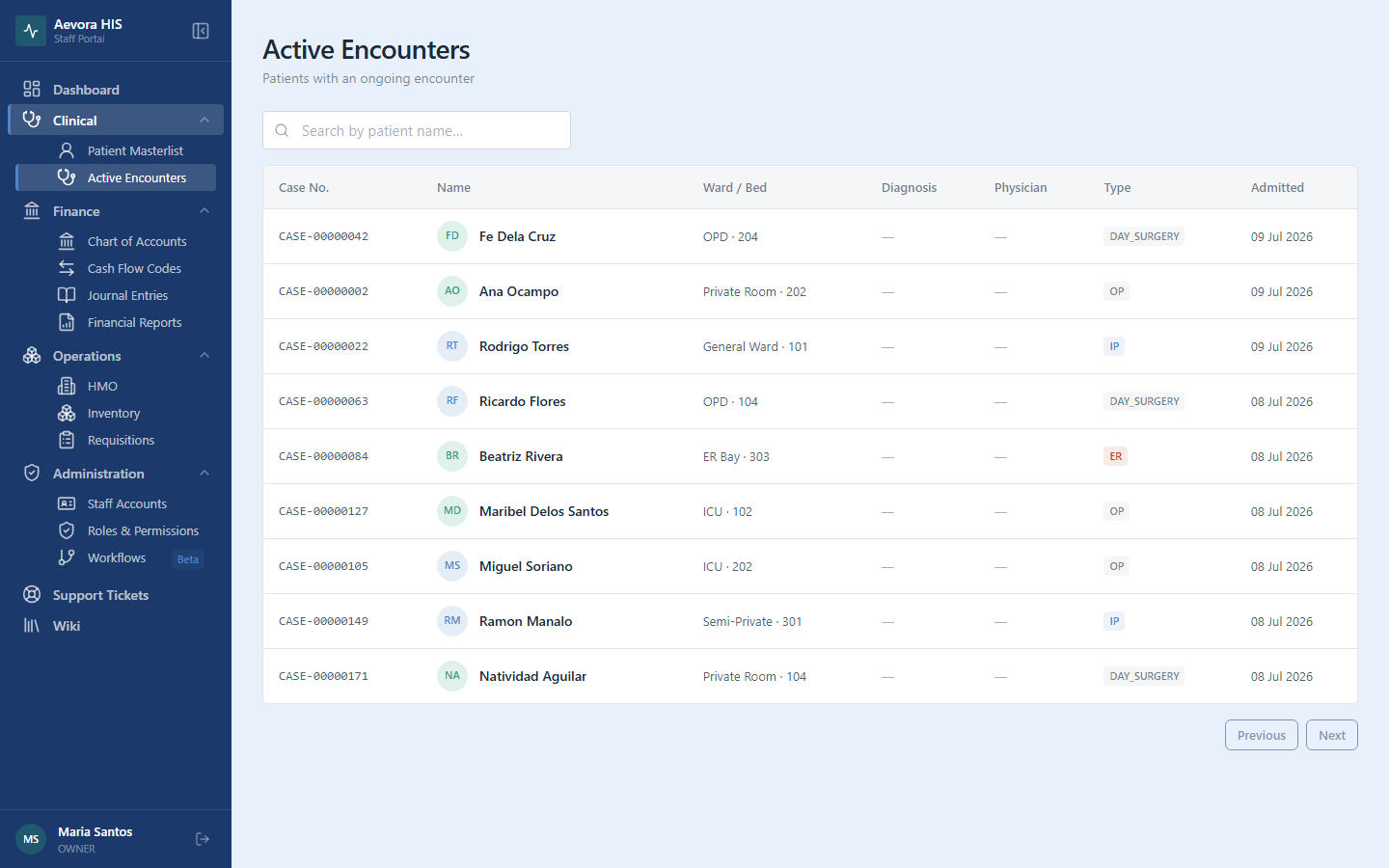
Section titled “Introduction”The Active Encounters screen shows every patient currently admitted or being attended to at the facility. It is the real-time operational view of the facility’s patient census. Staff use it to track who is in-house, monitor encounter progress, and hand off between shifts.
Key Concepts
Section titled “Key Concepts”Encounter Types: OPD, IPD, ER
Section titled “Encounter Types: OPD, IPD, ER”Every encounter is tagged with a short type label describing the setting of care:
- OPD (Outpatient) — scheduled consultations, follow-up visits, and procedures that don’t require overnight admission. The patient arrives, is seen, and leaves the same day.
- IPD (Inpatient) — the patient is admitted for overnight or extended care. IPD encounters stay open, with a ward/bed assignment, until formal discharge.
- ER (Emergency) — opened for patients presenting to the emergency department. ER encounters carry a mandatory triage level and chief complaint, and can be converted to IPD if the patient requires admission.
Triage levels follow the 5-tier Emergency Severity Index: Resuscitation (most critical) → Emergent → Urgent → Less Urgent → Non-Urgent.
Case Numbers
Section titled “Case Numbers”Every encounter is assigned a case number automatically when it’s opened, in the format CASE-NNNNNNNN (an 8-digit sequential number, e.g. CASE-00000042). The sequence is global and never resets or recycles — case numbers are permanent. If an encounter is opened in error, close it rather than trying to reuse its number.
Encounter Record Structure
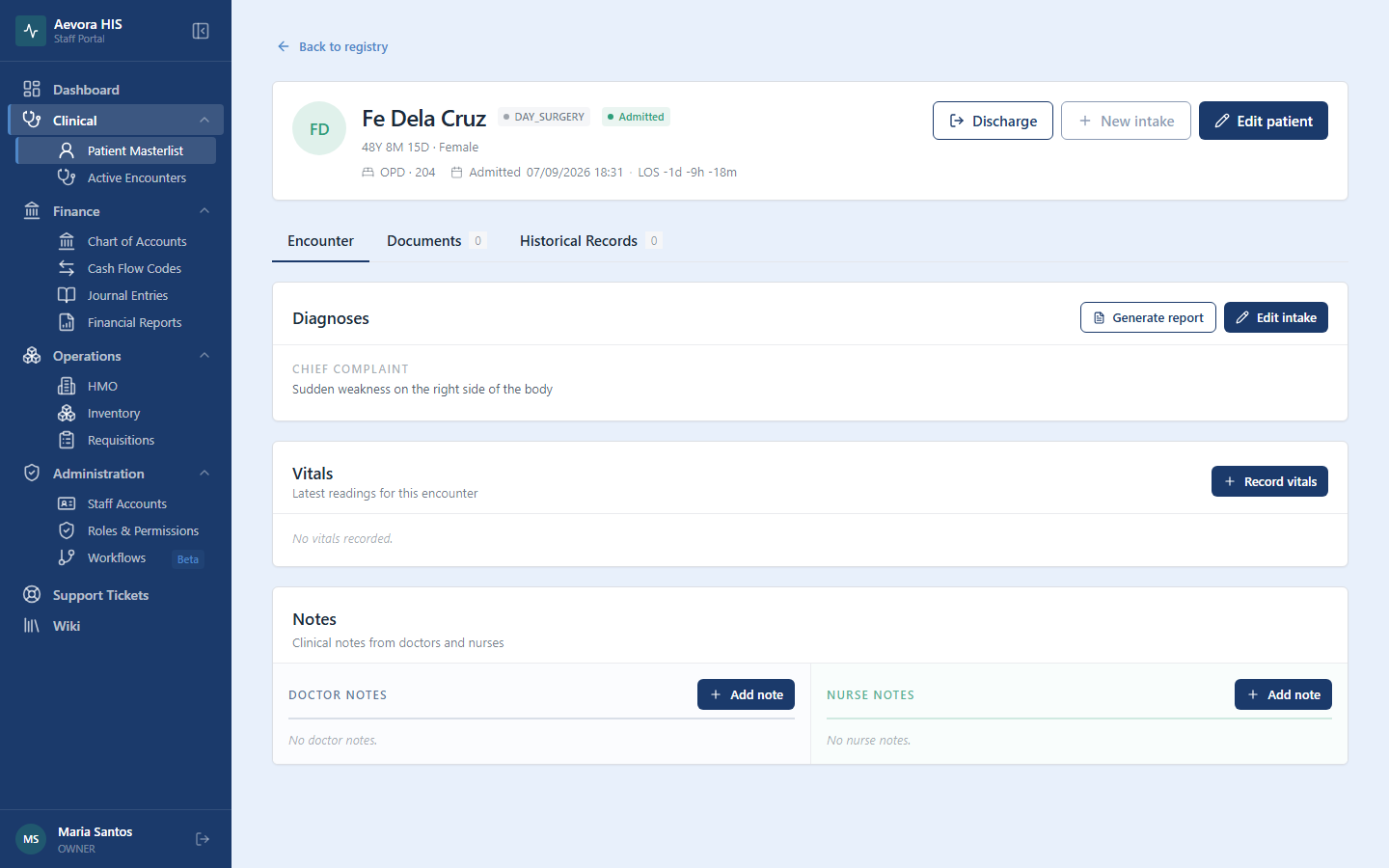
Section titled “Encounter Record Structure”Opening an encounter shows the same tabbed record as the patient’s chart: Encounter (vitals, notes, diagnoses, and medication orders — see Vitals & Clinical Notes and Encounter Requisitions), Documents (see Patient Documents), and Historical Records.
Use Cases
Section titled “Use Cases”Opening a New Encounter
Section titled “Opening a New Encounter”Encounters are started from the patient record, not directly from the Active Encounters screen, through a short wizard:
- Find the patient in the Patient Masterlist and open their record.
- Click New Encounter to start the wizard.
- Case / Encounter — choose the encounter type and enter the chief complaint.
- Bed Assignment — assign a ward and bed (required for inpatient admission).
- Doctor Assignment — assign the attending physician (only active physician accounts appear).
- Vitals — record the admission vital signs.
- Review & Admit — confirm all details and open the encounter.
The encounter appears immediately in the Active Encounters list and on the attending physician’s dashboard.
Transferring Between Wards
Section titled “Transferring Between Wards”For IPD patients who are moved to a different ward or room:
- Open the encounter record.
- Go to Summary → Transfer.
- Select the new ward and room.
- Enter the transfer reason and the receiving nurse.
- Click Confirm Transfer.
A transfer entry is added to the encounter timeline with the date, time, and staff who performed the transfer.
Discharging a Patient
Section titled “Discharging a Patient”When the attending physician determines a patient is ready for discharge:
- Open the encounter record.
- Click Discharge in the top-right of the Summary tab.
- Complete the Discharge Summary form:
- Discharge diagnosis — required (ICD-10 coded)
- Discharge disposition — Home / Home Against Advice / Transferred to Facility / Transferred to Hospice / Expired / Absconded
- Discharge instructions — printed and handed to the patient
- Follow-up schedule — date and department for next visit
- Click Finalize Discharge.
A discharged encounter is removed from the Active Encounters list and archived in the patient’s encounter history. If your facility has a discharge clearance workflow configured, the encounter moves to Pending Discharge until all required steps are cleared or waived.
Recording an Against Medical Advice (AMA) Discharge
Section titled “Recording an Against Medical Advice (AMA) Discharge”If a patient insists on leaving before the physician recommends discharge:
- The physician or nurse documents the refusal in a clinical note.
- The patient (or legal guardian) signs the AMA form — this can be printed from the encounter record.
- Discharge disposition is set to Home Against Advice.
- The encounter is closed normally.
AMA discharges are flagged in the patient’s encounter history.
Reference
Section titled “Reference”Active Encounters List Columns
Section titled “Active Encounters List Columns”| Column | Description |
|---|---|
| Case number | CASE-NNNNNNNN, unique per encounter, permanent |
| Patient name | Linked to the patient record |
| Type | OPD, IPD, or ER |
| Attending physician | The assigned doctor |
| Admission date/time | DD MMM YYYY · HH:MM |
| Ward / Bed | For IPD admissions |
| Status | See status reference below |
Encounter Status Reference
Section titled “Encounter Status Reference”| Status | Meaning |
|---|---|
| Pre-Admission | Encounter opened but the patient has not yet been formally admitted |
| Admitted | Patient is in-facility; encounter is open |
| On Pass | Patient has temporarily left the facility; encounter remains open |
| Pending Discharge | Physician has cleared for discharge; awaiting billing or workflow clearance |
| Discharged | Encounter is finalized; no further edits allowed |
| Transferred | Patient moved to another facility |
| Absconded | Patient left without formal discharge |
| Expired | Patient died during the encounter |
| Cancelled | Opened in error; no clinical activity recorded |
Permissions
Section titled “Permissions”Viewing, creating, and editing encounters requires the intake permission (view / create / edit). There is no delete action for encounters — cancel one instead if it was opened in error.