Support Tickets
Introduction
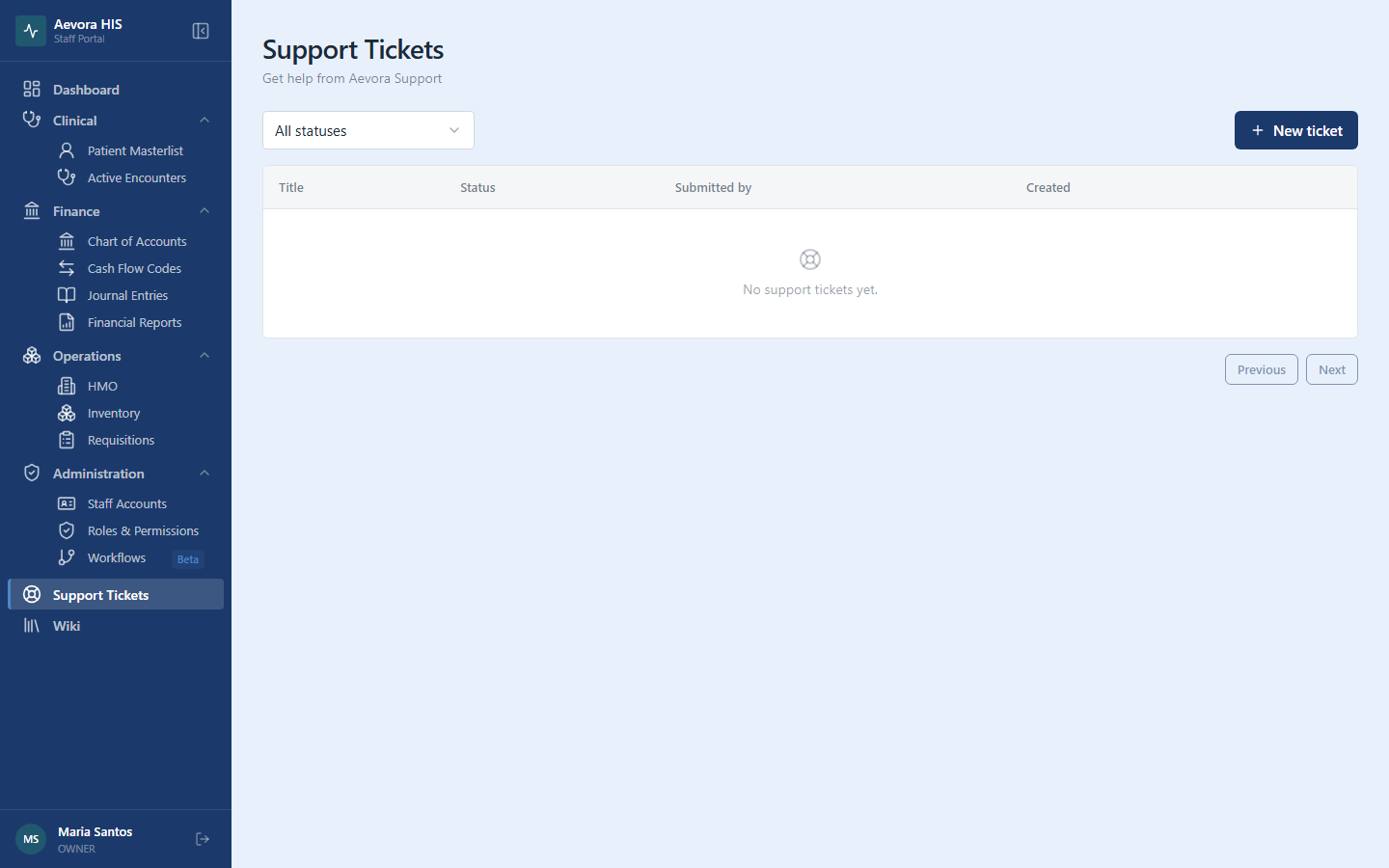
Section titled “Introduction”Support Tickets connect facility staff directly to Aevora’s support team. If something isn’t working, looks wrong, or you’re unsure how to do something the rest of this Help Center doesn’t cover, a ticket is the fastest way to reach a real person.
Key Concepts
Section titled “Key Concepts”Ticket Visibility: Own vs. All
Section titled “Ticket Visibility: Own vs. All”By default, you only see the tickets you submitted. Some roles (typically administrators) hold an elevated viewAll permission that shows every ticket submitted by anyone at the facility — useful for a system administrator triaging issues on behalf of their team. If you can’t find a ticket a colleague mentioned, it’s likely because you don’t hold viewAll and it isn’t yours.
Ticket Status Lifecycle
Section titled “Ticket Status Lifecycle”| Status | Meaning |
|---|---|
| Pending | Submitted, not yet picked up by Aevora Support |
| In Progress | Aevora Support has replied and is actively working on it |
| Resolved | The issue has been addressed |
Replying to a Resolved ticket automatically reopens it to In Progress — if your issue comes back, just reply instead of opening a new ticket.
Who You’re Talking To
Section titled “Who You’re Talking To”Every reply from Aevora’s side is shown as coming from “Aevora Support” — never an individual staff member’s name. This is intentional: it keeps the support relationship consistent regardless of which person on Aevora’s team is handling your ticket that day.
Use Cases
Section titled “Use Cases”Submitting a New Ticket
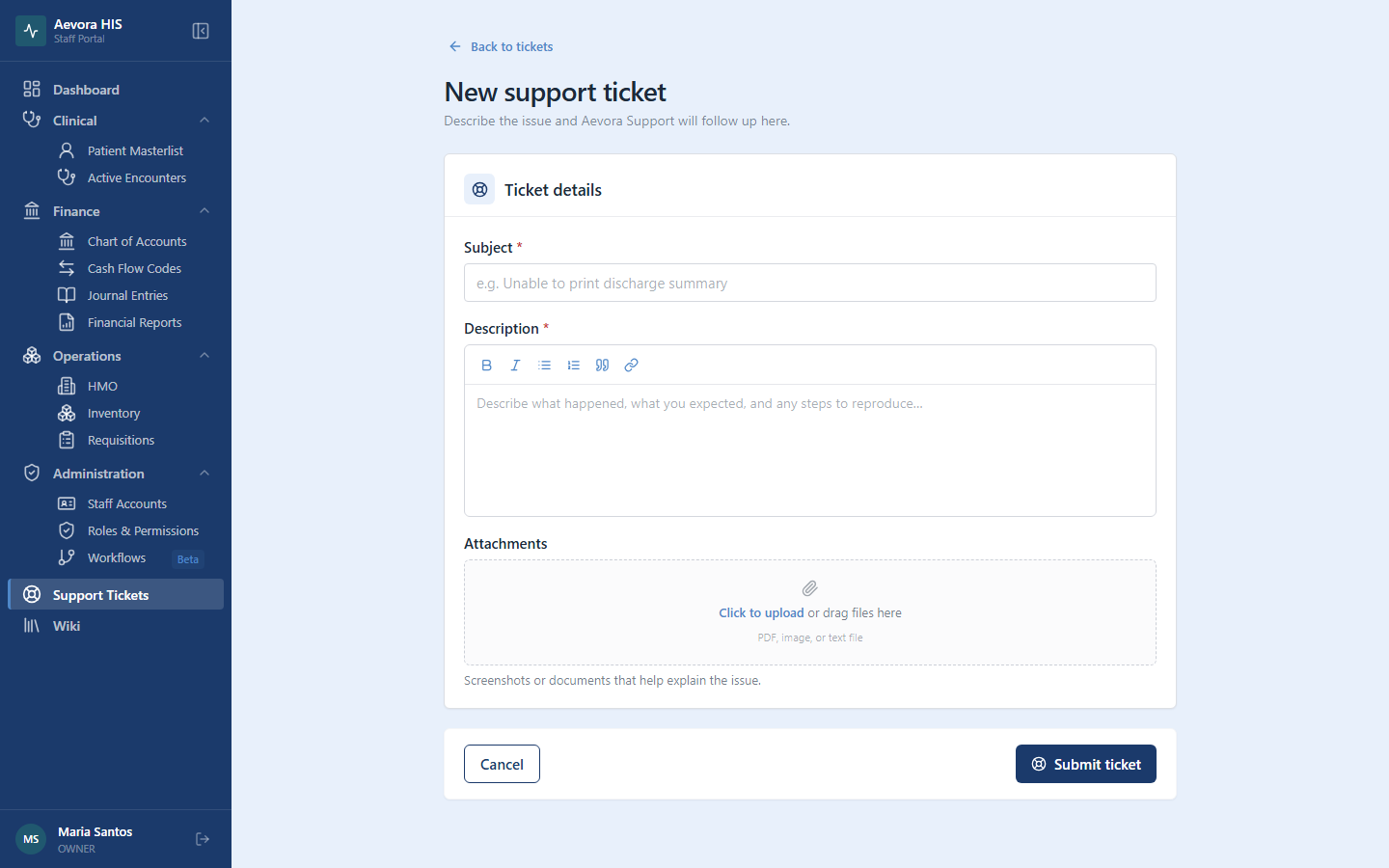
Section titled “Submitting a New Ticket”- Go to Support Tickets in the sidebar.
- Click New ticket.
- Enter a Subject describing the issue.
- Write a Description — what happened, what you expected, and any steps to reproduce it.
- Optionally attach screenshots or documents (PDF, image, or text files).
- Click Submit ticket.
Replying to a Ticket Thread
Section titled “Replying to a Ticket Thread”Open any ticket from the list to see the full conversation. Type your reply in the box at the bottom and click Send — you can attach additional files to a reply the same way you did when creating the ticket.
Tracking Ticket Status
Section titled “Tracking Ticket Status”Use the status filter above the ticket list to narrow it to Pending, In Progress, or Resolved tickets. The status badge on each row updates as Aevora Support works the ticket — no need to check back manually; replies show up in the thread as soon as they’re posted.
Reference
Section titled “Reference”Attachments
Section titled “Attachments”Attachments accept PDF, image (JPEG, PNG, WEBP, GIF), and plain text or CSV files, up to your facility’s configured size limit. There’s no separate upload step — attach a file while writing the ticket or a reply, and it’s saved together with that message.
Permissions
Section titled “Permissions”| Action | Permission |
|---|---|
| View your own tickets | ticket → view |
| View every ticket at the facility | ticket → viewAll |
| Submit a new ticket | ticket → create |
| Reply to a ticket | ticket → reply |