Chart of Accounts
Introduction
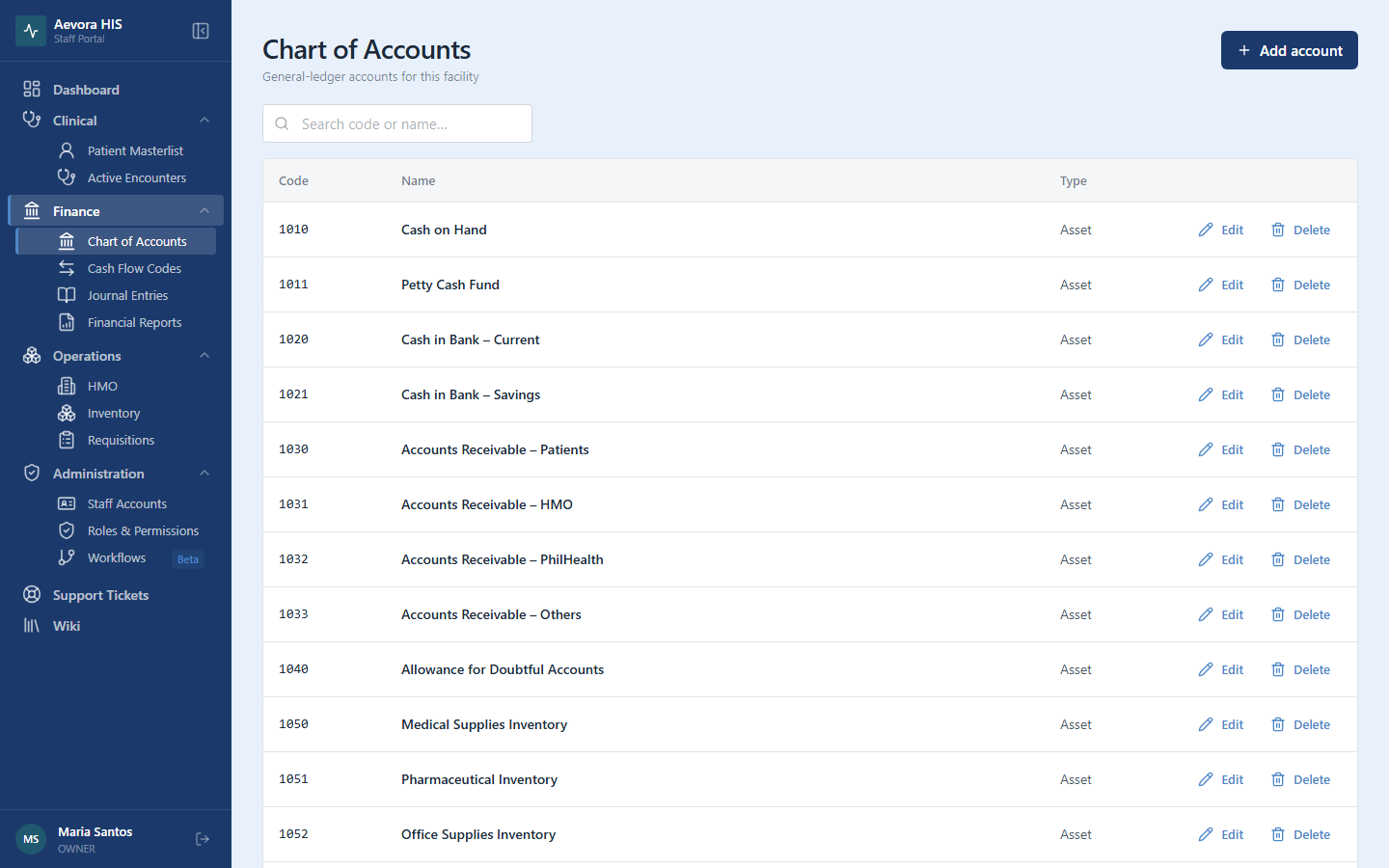
Section titled “Introduction”The Chart of Accounts (COA) is the backbone of the facility’s accounting system. It is a structured list of every financial account used to record transactions. Every journal entry, billing charge, and financial report draws from this list. Getting the COA right is foundational — changes later can be costly to reconcile.
Key Concepts
Section titled “Key Concepts”Account Structure
Section titled “Account Structure”Accounts in Aevora follow a hierarchical parent-child structure. A parent account (e.g., “Current Assets”) groups related child accounts (e.g., “Cash on Hand”, “Petty Cash Fund”, “Accounts Receivable — PhilHealth”).
This hierarchy is reflected in financial reports: parent accounts aggregate the balances of all their children, giving you rolled-up totals without manual calculation.
Account Types
Section titled “Account Types”Every account belongs to one of five types, which determine how it behaves on financial statements:
| Type | Normal balance | Appears on | Description |
|---|---|---|---|
| Asset | Debit | Balance Sheet | Resources owned or controlled by the facility |
| Liability | Credit | Balance Sheet | Obligations owed to external parties |
| Equity | Credit | Balance Sheet | Owner’s or institution’s net interest |
| Revenue | Credit | Income Statement | Income earned from services and operations |
| Expense | Debit | Income Statement | Costs incurred in running the facility |
If a transaction increases an account that has a debit normal balance, record it as a debit. If it increases a credit-normal account, record it as a credit. This is the foundation of double-entry bookkeeping — see Journal Entries for how this is applied in practice.
Account Code Conventions
Section titled “Account Code Conventions”Aevora does not enforce a specific numbering scheme, but the following convention is standard practice in Philippine health facilities and is strongly recommended:
| Range | Type |
|---|---|
| 1000–1999 | Assets |
| 2000–2999 | Liabilities |
| 3000–3999 | Equity |
| 4000–4999 | Revenue |
| 5000–5999 | Expenses |
Sub-accounts extend the parent code. For example:
1000— Current Assets (parent)1001— Cash on Hand1002— Petty Cash Fund1010— Cash in Bank — BPI Operating1100— Accounts Receivable1101— Accounts Receivable — PhilHealth1102— Accounts Receivable — HMO
Use consistent spacing (e.g., always four-digit codes at the top level, five-digit for sub-accounts) so that reports sort and group correctly.
Cash Flow Fields
Section titled “Cash Flow Fields”Two optional fields on every account feed the Cash Flow Statement:
- Cash flow code — groups the account into a section of the statement (Operating, Investing, or Financing Activities). Assign one to every account that drives cash movement: PhilHealth and HMO claim receivables, supplier payables, medicine and supply inventory, medical equipment, loans, depreciation. Codes are managed under Cash Flow Codes.
- Cash account — flags the account as actual cash (Cash on Hand, Petty Cash, bank accounts). Only asset accounts can be flagged. Cash-flagged accounts make up the statement’s Beginning and Ending Cash and never need a cash flow code — cash is what the statement explains, not one of its adjustments.
If the Cash Flow Statement shows Off by …, an account is usually missing one of these two settings — see the troubleshooting checklist.
Account Balances
Section titled “Account Balances”The table shows a Balance for each account — its running ledger balance from posted journal entries only; drafts and voided entries don’t count. Balances follow each account’s normal side (see Account Types above): debit-normal accounts (assets, expenses) grow with debits, credit-normal accounts (liabilities, equity, revenue) grow with credits. An account with no posted activity shows ₱0.00.
Accounts that carry a cash flow code also roll their balances up into that code’s Balance on the Cash Flow Codes page.
Use Cases
Section titled “Use Cases”Setting Up a Starter Chart of Accounts
Section titled “Setting Up a Starter Chart of Accounts”When a facility is first set up, create at minimum:
Assets (1000–1999)
| Code | Account name |
|---|---|
| 1000 | Current Assets |
| 1001 | Cash on Hand |
| 1002 | Petty Cash Fund |
| 1010 | Cash in Bank — Operating |
| 1011 | Cash in Bank — Payroll |
| 1100 | Accounts Receivable |
| 1101 | AR — PhilHealth Claims |
| 1102 | AR — HMO Claims |
| 1103 | AR — Private Pay Patients |
| 1200 | Medical Supplies Inventory |
| 1201 | Pharmaceutical Inventory |
| 1300 | Prepaid Expenses |
| 1500 | Non-Current Assets |
| 1510 | Property and Equipment |
| 1511 | Accumulated Depreciation |
Liabilities (2000–2999)
| Code | Account name |
|---|---|
| 2000 | Current Liabilities |
| 2001 | Accounts Payable |
| 2010 | SSS Contributions Payable |
| 2011 | PhilHealth Contributions Payable |
| 2012 | Pag-IBIG Contributions Payable |
| 2020 | Withholding Tax Payable |
| 2030 | VAT Payable |
| 2100 | Accrued Expenses |
Revenue (4000–4999)
| Code | Account name |
|---|---|
| 4000 | Revenue |
| 4001 | OPD Consultation Fees |
| 4002 | IPD Room and Board |
| 4003 | Emergency Room Fees |
| 4010 | Laboratory Fees |
| 4011 | Radiology Fees |
| 4020 | Surgical Fees |
| 4030 | Pharmacy Revenue |
| 4040 | PhilHealth Reimbursements |
| 4050 | HMO Reimbursements |
Adding an Account
Section titled “Adding an Account”- Go to Finance → Chart of Accounts.
- Click New Account.
- Fill in the required fields:
- Account code — follow your facility’s numbering convention
- Account name — descriptive, consistent with your existing naming style
- Account type — Asset, Liability, Equity, Revenue, or Expense
- Parent account — select a parent to place this account in the hierarchy (leave blank for top-level)
- Click Save.
The account is immediately available for use in journal entries and billing configuration.
Editing an Account
Section titled “Editing an Account”You can edit the name and parent of an account at any time. You cannot change an account’s type once it has been used in a journal entry — this would distort historical financial statements.
To change an account’s type, you must:
- Ensure it has a zero balance and no open transactions.
- Deactivate it.
- Create a new account with the correct type.
- Reclassify any historical transactions using a journal entry.
Deactivating an Account
Section titled “Deactivating an Account”Accounts with a zero balance and no open transactions can be deactivated. Deactivated accounts:
- Do not appear in journal entry dropdowns
- Are excluded from active COA reports
- Remain in the database for historical record integrity
Accounts cannot be deleted.
Reconciling a Bank Account at Month-End
Section titled “Reconciling a Bank Account at Month-End”At month-end, reconcile each bank account by comparing the system balance to the bank statement. Use Finance → Reports → Bank Reconciliation to generate the reconciliation worksheet. Flag any unreconciled items and post adjusting entries as needed.
PhilHealth and HMO receivable accounts should also be reconciled monthly against claim submission records.
Reference
Section titled “Reference”Active vs. Deactivated
Section titled “Active vs. Deactivated”| Status | Visible in reports | Available in journal entries | Balance shown |
|---|---|---|---|
| Active | Yes | Yes | Yes |
| Deactivated | Only in historical reports | No | Yes |
Permissions
Section titled “Permissions”Managing the chart of accounts requires the accounts permission (view / create / update / delete).