Patient Masterlist
Introduction
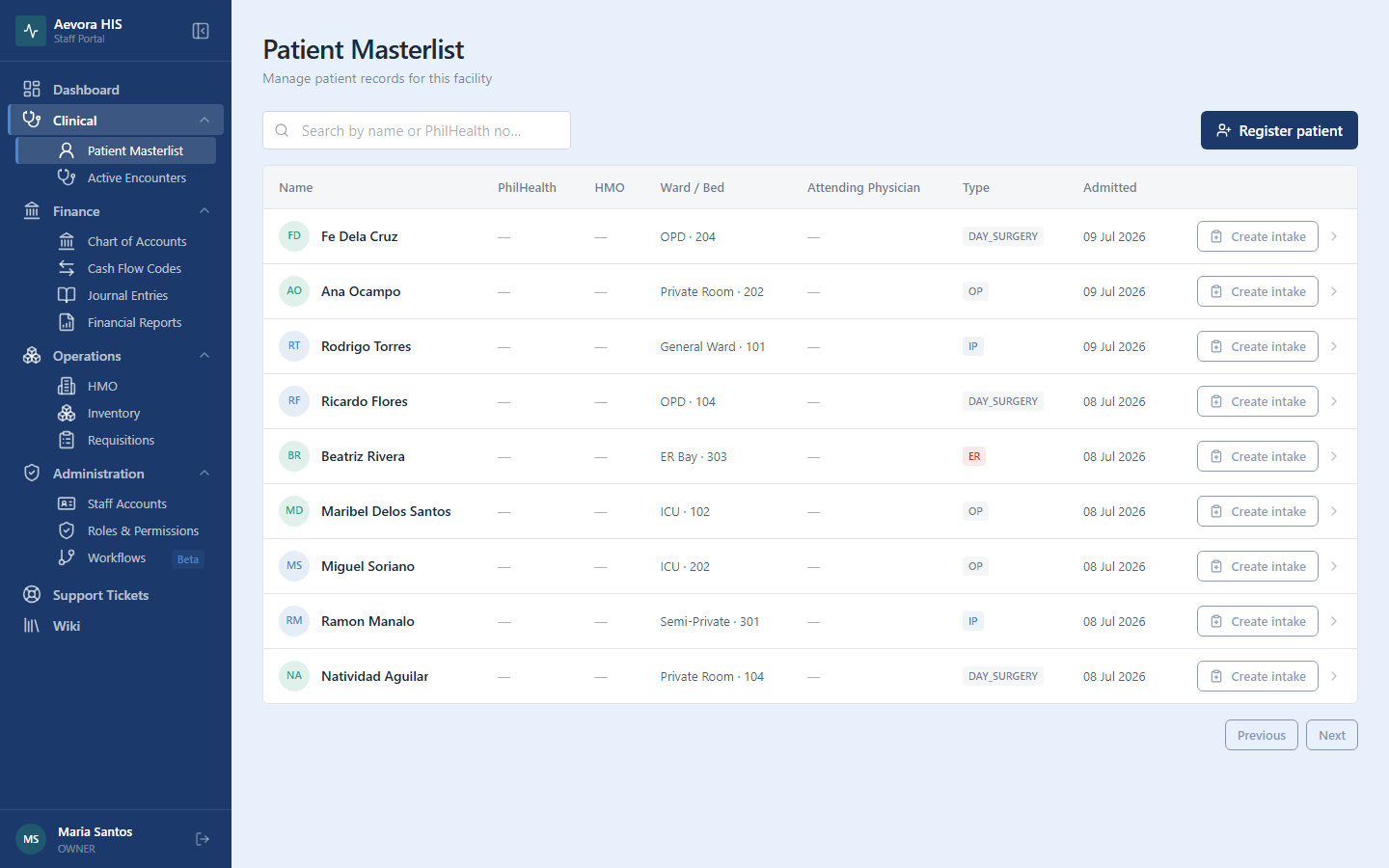
Section titled “Introduction”The Patient Masterlist is the central registry of every patient ever seen at your facility. It is the starting point for all clinical activity — you must locate or register a patient here before opening an encounter, recording a consultation, or processing a bill.
Key Concepts
Section titled “Key Concepts”Patient Record Structure
Section titled “Patient Record Structure”Opening a patient from the masterlist takes you to their record, organized into tabs:
| Tab | Contents |
|---|---|
| Encounter | The patient’s current or most recent visit — vitals, notes, and diagnoses. See Active Encounters and Vitals & Clinical Notes for the full detail. |
| Documents | Files attached to the patient record — referrals, imaging, lab results. See Patient Documents for the full detail. |
| Historical Records | Every past encounter for this patient, read-only. |
Patient Status Lifecycle
Section titled “Patient Status Lifecycle”Every patient record carries a status that reflects their relationship to the facility over time:
Active (default) ──▶ Inactive (moved, transferred, or duplicate) └─▶ Deceased (date of death recorded)A record doesn’t have to pass through Inactive to become Deceased — either transition happens directly from Active. Deceased records are shown with a gray badge and are excluded from the Active Patients count on the Dashboard.
Use Cases
Section titled “Use Cases”Searching for a Patient
Section titled “Searching for a Patient”Use the search bar at the top of the list to find a patient. Search is performed across:
| Field | Notes |
|---|---|
| Full name | Partial match; case-insensitive |
| PhilSys Reference Number (PSN) | Exact match |
| PhilHealth Number | Exact match |
| Date of birth | Enter as DD MMM YYYY (e.g., 15 Mar 1985) |
| Case number | Searches across all encounters for that patient |
Results are returned instantly as you type. If the list is empty after searching, the patient is not yet registered — proceed to registration below.
Registering a New Patient
Section titled “Registering a New Patient”Click New Patient in the top-right corner to open the registration form.
Required fields:
| Field | Notes |
|---|---|
| Last name | Family name as it appears on government ID |
| First name | |
| Date of birth | DD MMM YYYY |
| Sex | Male / Female — used for clinical decision support |
| Civil status | Single / Married / Widowed / Separated |
Optional but strongly recommended:
| Field | Why it matters |
|---|---|
| PhilSys number (PSN) | Required for PhilSys-linked benefits; prevents duplicate records |
| PhilHealth number | Required for PhilHealth billing |
| Mobile number | Used for appointment reminders and discharge instructions |
| Address | Required for contact tracing and DOH reporting |
| Emergency contact | Name, relationship, and mobile number |
| Blood type | Critical for emergency transfusions |
| Known allergies | Displayed as a red banner on all encounter screens |
Before saving, Aevora checks for potential duplicates by matching name + date of birth and by PhilSys/PhilHealth number. If a possible duplicate is found, a warning dialog shows the matching records — review them before proceeding, since creating a duplicate fragments clinical history and complicates billing.
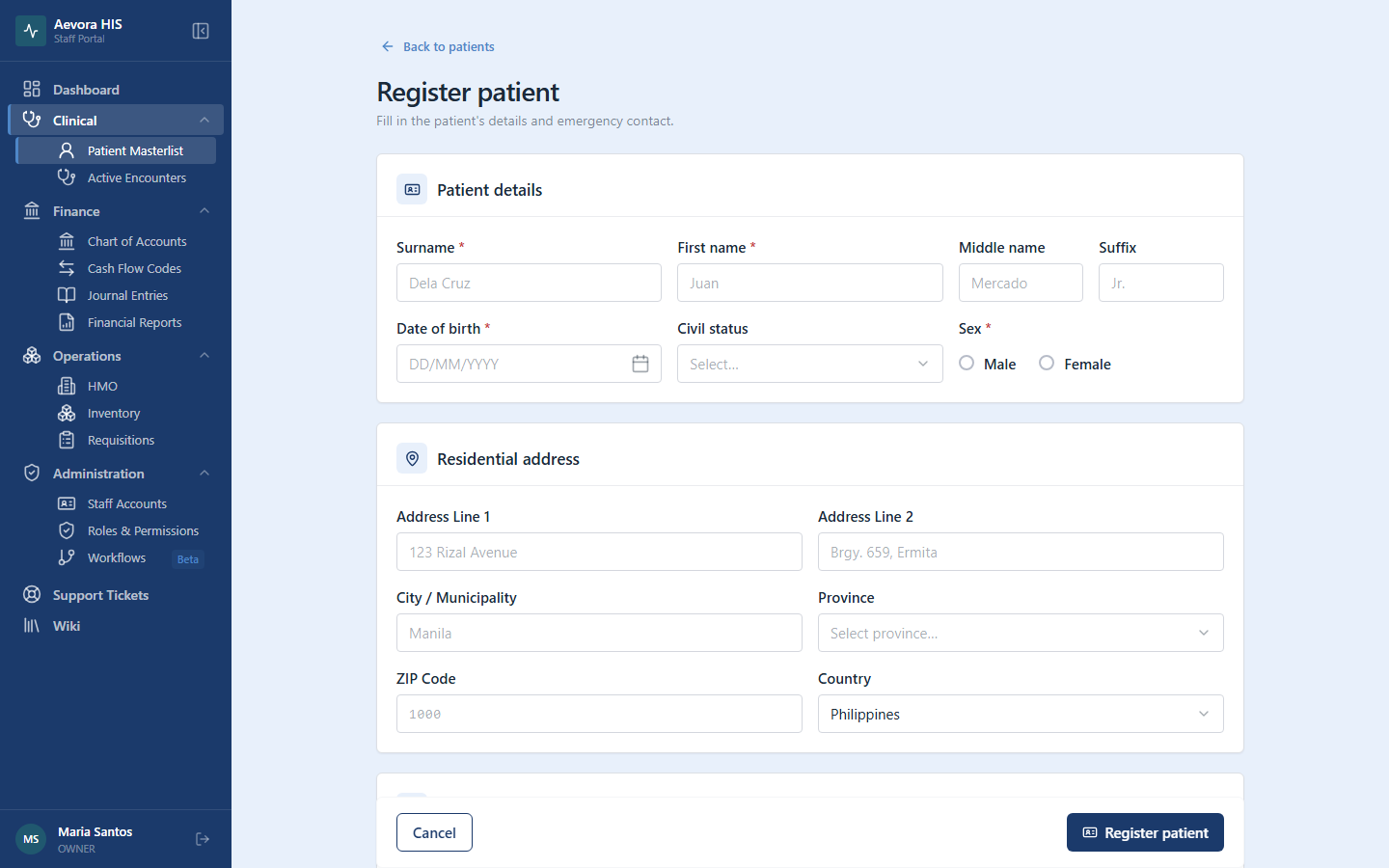
Click Save to complete registration. The patient record opens immediately.
Viewing a Patient Record
Section titled “Viewing a Patient Record”Click any row in the masterlist to open the full patient record — see Patient Record Structure above for what each tab contains.
Editing a Patient Record
Section titled “Editing a Patient Record”Click Edit on the record to modify patient information. All changes are logged with the editing staff member’s name and timestamp for audit purposes.
You cannot delete a patient record. If a record was created in error, mark it as Inactive and add a note in the remarks field explaining the reason.
Merging Duplicate Records
Section titled “Merging Duplicate Records”If two records exist for the same patient, an administrator can merge them from the patient record using Actions → Merge Records. The merge:
- Combines encounter history onto the primary record
- Retains all documents and billing history
- Marks the secondary record as Merged and links it to the primary
- Cannot be undone — use with caution
Updating Patient Status
Section titled “Updating Patient Status”From the patient record, go to Edit → Status and choose:
| Status | When to use it |
|---|---|
| Active | Default — the patient is known to the facility |
| Inactive | The patient has moved, transferred to another facility, or the record was created in error |
| Deceased | The patient has passed away — enter the date of death when prompted |
Reference
Section titled “Reference”Masterlist Columns
Section titled “Masterlist Columns”Each row in the masterlist shows:
- Full name (Last, First Middle format)
- Date of birth and computed age
- Sex
- PhilSys number (if recorded) — displayed in monospace
- PhilHealth number (if recorded)
- Last visit date
- Status badge — Active, Inactive, or Deceased
Privacy, Compliance & Access
Section titled “Privacy, Compliance & Access”Patient records are protected under RA 10173 (Data Privacy Act of 2012). Access is limited to staff with the patient → view permission. All record views, edits, and exports are logged.
Do not share patient information verbally or in writing outside of authorized clinical channels. Photographs of screens containing patient data are a violation of facility policy and may constitute a data privacy breach.