Inventory
Introduction
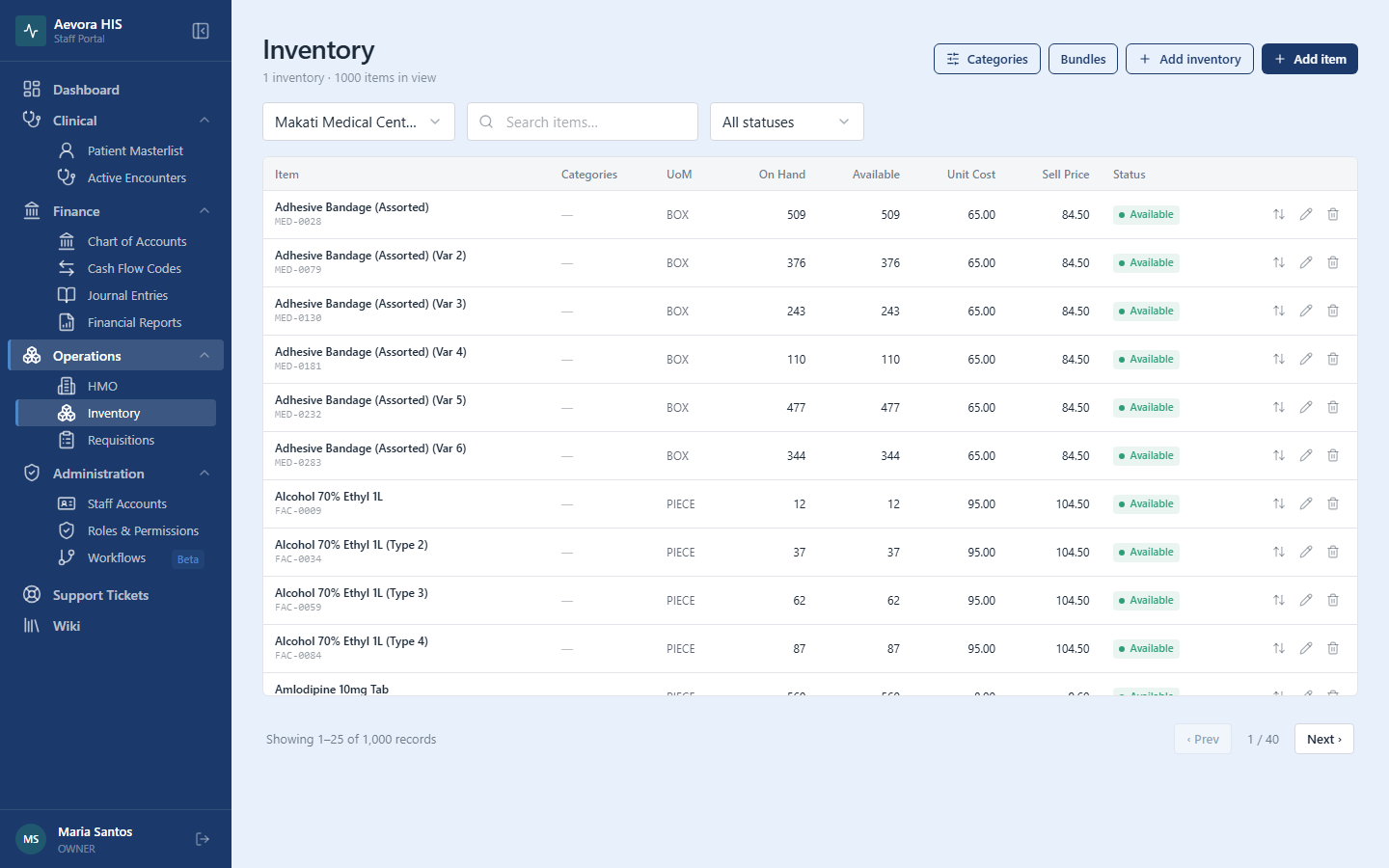
Section titled “Introduction”The Inventory module tracks physical stock at your facility — medications, medical supplies, consumables, and equipment — as a set of items with a running on-hand quantity. Every change in quantity is recorded as an adjustment, giving you a permanent history of what moved, when, and why.
Key Concepts
Section titled “Key Concepts”Items and Categories
Section titled “Items and Categories”Each item belongs to one inventory (your facility’s stock pool) and can be tagged with one or more facility-defined categories (e.g., “Medications”, “PPE”, “Wound Care”) to make the list filterable — categories are freely named by your facility, not a fixed list.
An item’s core fields are its name, SKU/barcode, brand and manufacturer, unit of measure (piece, box, pack, kilogram, liter, case, etc.), unit cost and selling price, and optional lot number, serial number, and expiration/manufacturing dates for items where that matters.
Stock Status
Section titled “Stock Status”Every item carries a status computed from its on-hand quantity against its reorder point:
| Status | Meaning |
|---|---|
| Active | Stock is above the reorder point |
| Low Stock | On-hand quantity has fallen to or below the reorder point |
| Out of Stock | On-hand quantity is zero |
The status updates automatically whenever an adjustment changes the on-hand quantity.
Adjustment Types
Section titled “Adjustment Types”All stock changes — up or down — go through the same Adjust Stock action with a signed amount (positive to add, negative to remove) and a type describing why:
| Type | Typical use |
|---|---|
| Manual Adjustment | A general correction not covered by another type |
| Stock Count | Reconciling on-hand quantity to a physical count |
| Damage | Stock damaged and no longer usable |
| Loss | Stock missing or unaccounted for |
| Spoilage | Stock expired or spoiled |
| Found | Stock discovered that wasn’t in the system |
| Return | Stock returned from a department or requisition |
| Bundle Assembly | Stock consumed to assemble an item bundle |
| Requisition Release | Stock deducted automatically when an item requisition is released |
| Other | Anything not covered above |
Bundle Assembly and Requisition Release are usually generated automatically by those features rather than entered directly.
Use Cases
Section titled “Use Cases”Adding a New Item
Section titled “Adding a New Item”- Go to Operations → Inventory.
- Click New Item.
- Fill in the item name, unit of measure, and any of the optional fields that apply — brand, manufacturer, cost/pricing, reorder point, categories, and lot/expiration details.
- Click Save.
The item is created with zero stock. Record its starting quantity with an Adjust Stock action (type: Manual Adjustment or Stock Count).
Adjusting Stock
Section titled “Adjusting Stock”- Open the item and click Adjust Stock.
- Enter the amount — a positive number to add stock, a negative number to remove it.
- Choose the adjustment type from the table above.
- Add a reason and optional notes.
- Click Save.
The item’s on-hand quantity, available quantity, and status update immediately, and the adjustment is added to the item’s permanent history.
Editing an Item
Section titled “Editing an Item”Open the item and click Edit to update any of its fields, including its reorder point and category tags.
Deactivating an Item
Section titled “Deactivating an Item”Items are deactivated rather than deleted, preserving their adjustment history. A deactivated item no longer appears in dropdowns used elsewhere in the system (such as item requisitions).
Reviewing Adjustment History
Section titled “Reviewing Adjustment History”Open an item and go to its Adjustments tab to see every adjustment ever recorded against it — amount, type, reason, notes, the staff member who recorded it, and the before/after quantity.
Reference
Section titled “Reference”Item Bundles
Section titled “Item Bundles”A bundle groups several items together under one selectable unit (e.g., a “Minor Suturing Kit” bundle made up of gauze, suture, and antiseptic). Assembling a bundle consumes its component items via a Bundle Assembly adjustment on each. Manage bundles under Operations → Inventory → Bundles.
Permissions
Section titled “Permissions”Managing inventory requires the inventory permission (view / create / update / delete).