Patient Documents
Introduction
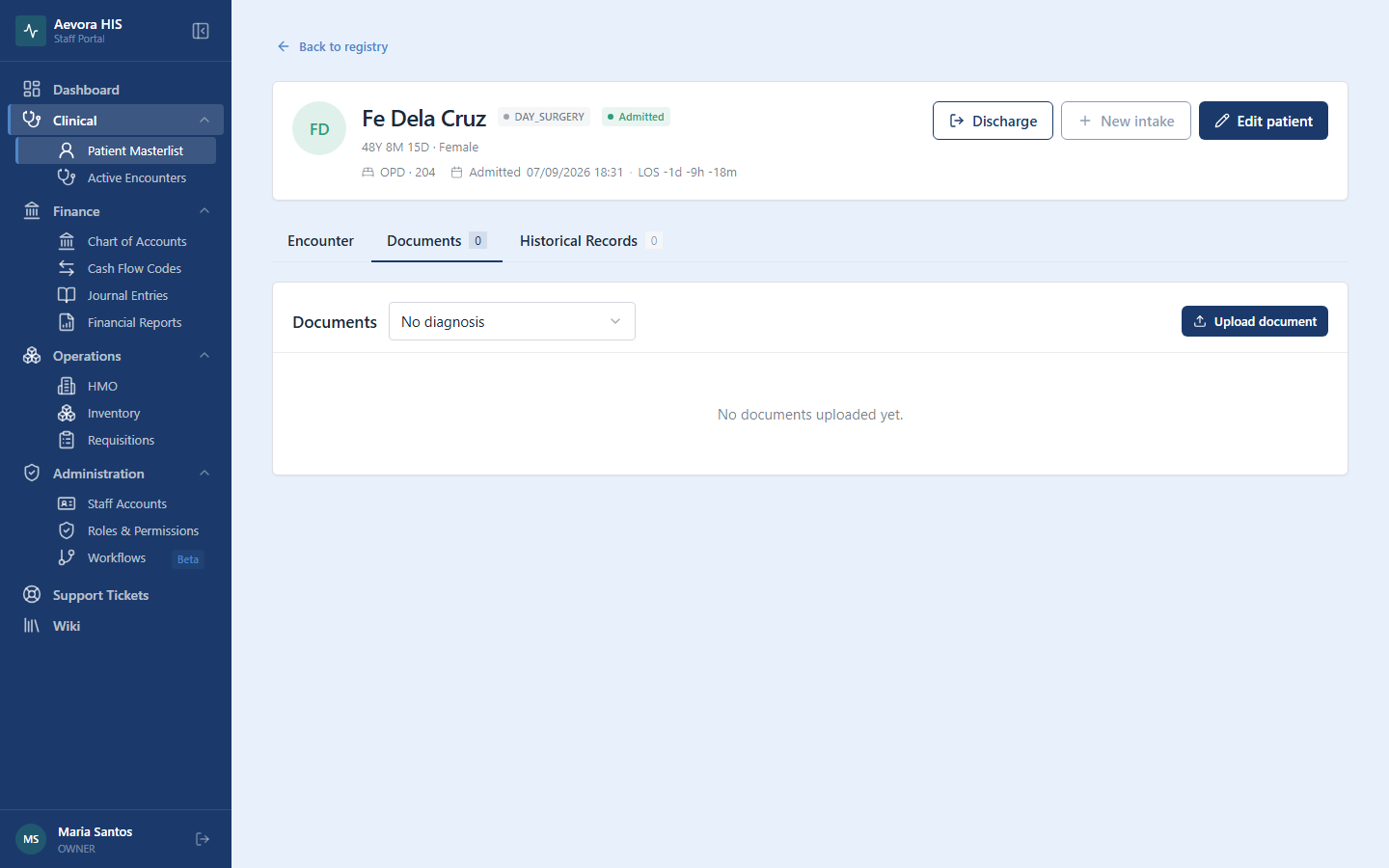
Section titled “Introduction”The Documents tab on a patient’s record is where scanned and digital files travel with the patient — lab results, imaging, referral letters, and other paperwork that supports (but isn’t itself part of) the clinical narrative recorded in Vitals & Clinical Notes.
Key Concepts
Section titled “Key Concepts”Document Types
Section titled “Document Types”Every uploaded document is tagged with a type, chosen from a fixed list:
| Type | Typical use |
|---|---|
| Lab Result | Blood work, urinalysis, culture results |
| Imaging | X-ray, CT, MRI |
| Prescription | Medication orders written outside the system |
| Referral Letter | Incoming or outgoing referrals |
| Consent Form | Signed procedure/treatment consent |
| Discharge Summary | Summary from a previous facility or prior admission |
| Medical Certificate | Fit-to-work, fit-to-travel, etc. |
| Insurance Form | HMO or PhilHealth paperwork |
| Other | Anything not covered above — requires a free-text label |
Where Documents Live
Section titled “Where Documents Live”Documents are attached to the patient, not to a single encounter — a referral letter uploaded during one visit remains visible on every future visit. This is different from clinical notes and vitals, which belong to a specific encounter.
Use Cases
Section titled “Use Cases”Uploading a Document
Section titled “Uploading a Document”- Open the patient’s record and go to the Documents tab.
- Click Upload Document.
- Select the file from your workstation.
- Choose a Document Type from the dropdown. If you choose Other, specify the type in the field that appears.
- Optionally select a Department and add Notes.
- Click Save.
Viewing a Document
Section titled “Viewing a Document”Click View next to any document in the list to open it in a new browser tab.
Editing Document Details
Section titled “Editing Document Details”Click Edit on a document to change its type, department, or notes, or to replace the underlying file. Click Save changes to confirm.
Deleting a Document
Section titled “Deleting a Document”Open the document’s menu and choose Delete. This permanently removes the document from the patient’s record — there is no undo, so confirm you have the correct file before deleting.
Reference
Section titled “Reference”Permissions
Section titled “Permissions”| Action | Permission |
|---|---|
| View documents | patient documents → view |
| Upload a document | patient documents → add |
| Edit document details | patient documents → edit |
| Delete a document | patient documents → delete |
Privacy
Section titled “Privacy”Documents often contain the same sensitive information as the clinical record itself. The same RA 10173 privacy obligations that apply to patient records apply to any document attached to one.