HMO Management
Introduction
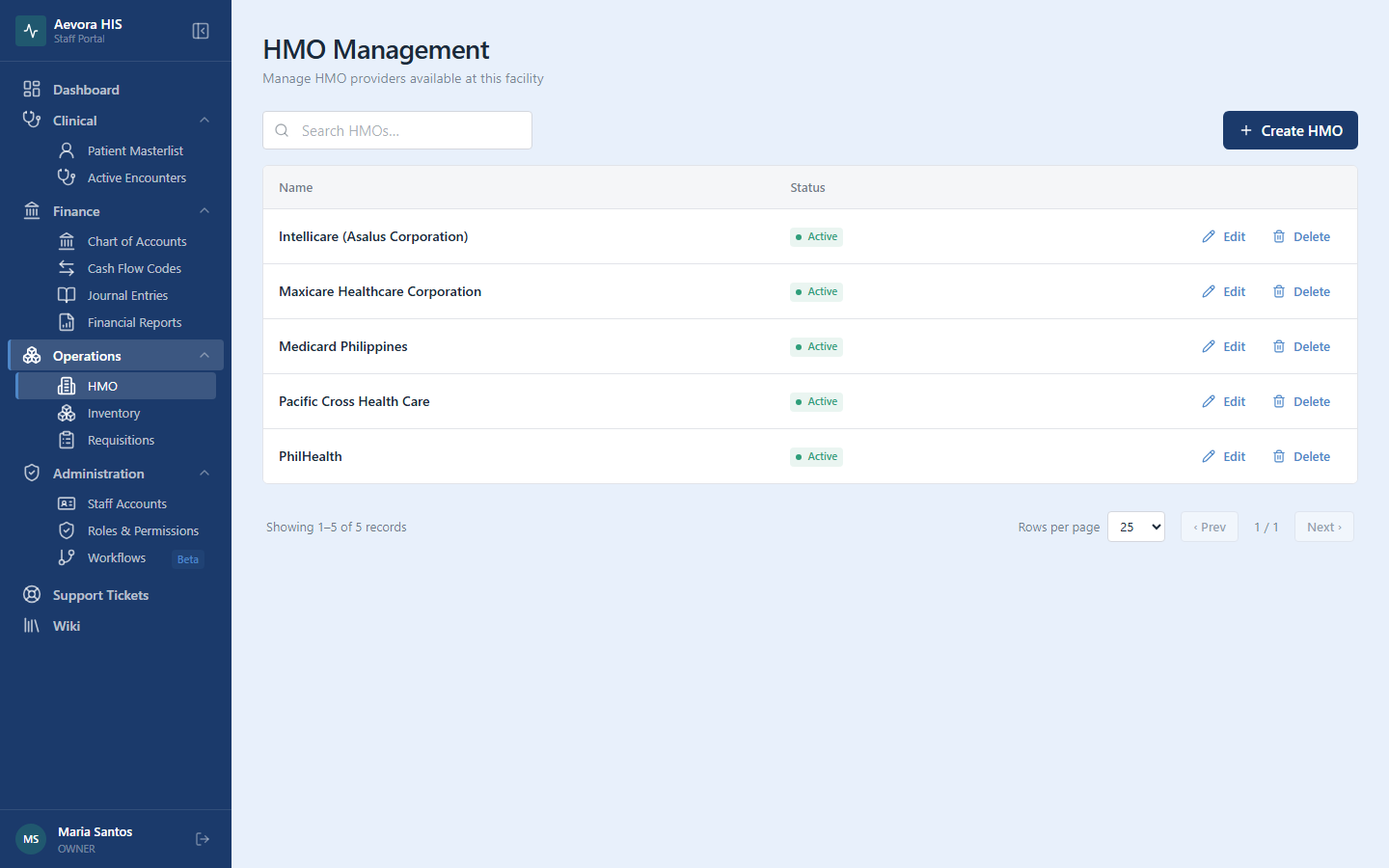
Section titled “Introduction”The HMO module maintains the list of Health Maintenance Organization (HMO) providers your facility recognizes. It’s a simple named list — when registering a patient, staff pick an HMO from this list and record the patient’s member number against it.
Key Concepts
Section titled “Key Concepts”PhilHealth vs. HMO
Section titled “PhilHealth vs. HMO”PhilHealth and private HMOs are separate systems. PhilHealth is government-mandated and applies to all eligible Filipino citizens; HMO coverage is private and applies only to enrolled members. A patient’s PhilHealth number and HMO selection are recorded independently on their patient record — Aevora does not currently manage claims, benefit limits, or Letters of Authorization for either.
What an HMO Record Contains
Section titled “What an HMO Record Contains”Each HMO in the list has just two properties: a name (e.g., “Maxicare”, “Intellicare”, “Medicard”) and an Active / Inactive status. Only HMOs marked Active appear as options on the patient registration form’s HMO dropdown.
Use Cases
Section titled “Use Cases”Adding an HMO
Section titled “Adding an HMO”- Go to Operations → HMO.
- Click Create HMO.
- Enter the HMO name.
- Click Create HMO.
The new HMO is immediately available for selection when registering or editing a patient.
Editing an HMO
Section titled “Editing an HMO”Click Edit on any row to correct its name. There is no separate step to change its active status from this dialog — see below.
Deactivating or Reactivating an HMO
Section titled “Deactivating or Reactivating an HMO”Toggle an HMO’s status by editing it. An Inactive HMO disappears from the registration dropdown for new patients but is preserved on any patient record that already references it.
Deleting an HMO
Section titled “Deleting an HMO”Click Delete on a row and confirm. This is a permanent action — consider deactivating instead if the HMO might be reinstated later or if patients still reference it.
Reference
Section titled “Reference”Permissions
Section titled “Permissions”Managing HMOs requires the hmo permission (view / create / update / delete).