Logging In
Introduction
Section titled “Introduction”The staff portal is accessed through a web browser on any workstation connected to the facility network. Your facility administrator will provide the URL — typically an internal address such as http://his.yourhospital.local or a specific IP on the LAN.
The portal is also installable as a Progressive Web App (PWA). If your administrator has set this up, you may have a desktop shortcut or an icon on your taskbar that launches it directly.
Use Cases
Section titled “Use Cases”Signing In
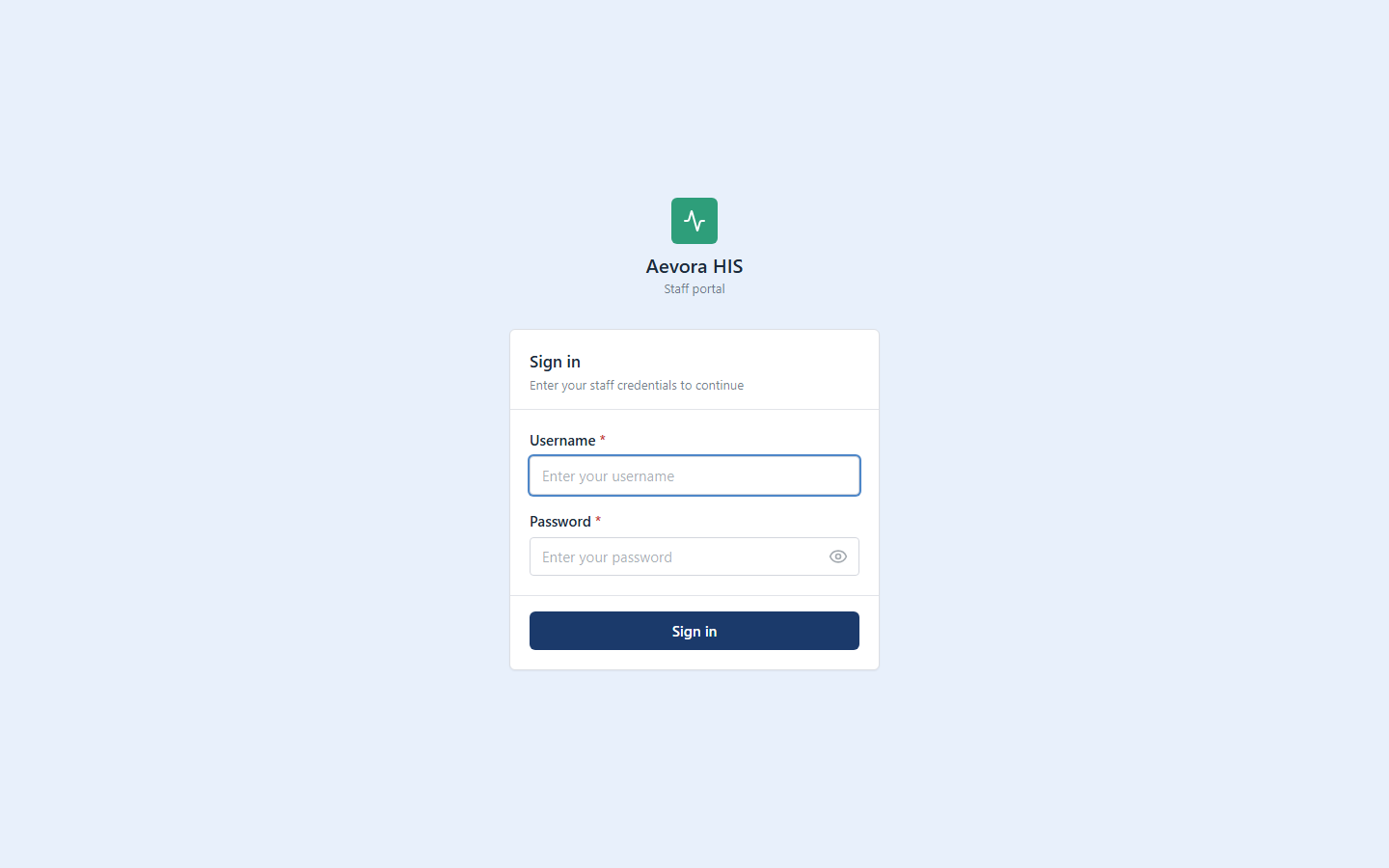
Section titled “Signing In”- Open the staff portal URL in your browser.
- Enter your Username.
- Enter your password.
- Click Sign In.
On successful authentication, you will be taken directly to your Dashboard.
If your username or password is incorrect, the form shows “Invalid username or password.” If your account has been deactivated, you’ll be signed out again as soon as the app tries to load your profile — contact your administrator to have it reactivated.
Getting Your Account Credentials
Section titled “Getting Your Account Credentials”Staff accounts don’t self-register. Your username and initial password are set by whoever creates your account (see Staff Accounts) and shared with you securely. There is no “sign up” flow — if you don’t have credentials yet, ask your system administrator.
Recovering a Forgotten Password
Section titled “Recovering a Forgotten Password”Self-service password reset is not available. If you’ve forgotten your password, contact your system administrator, who can open your staff record and set a new password for you (see Resetting a Password). For security reasons, administrators can set a new password but cannot see your current one.
Reference
Section titled “Reference”Signing Out
Section titled “Signing Out”Use the sign-out button at the bottom of the sidebar (the arrow icon next to your name) when your shift ends. This ensures no one else can access the system under your account on a shared workstation.
Role-Based Access at a Glance
Section titled “Role-Based Access at a Glance”Every staff account is assigned a role that controls which modules appear in the sidebar and what actions can be performed. If a module you expect to see is missing, your role does not include that permission — ask your system administrator to review your role assignment. See Roles & Permissions for the full permission matrix.