Accounting Settings
Introduction
Section titled “Introduction”Accounting Settings tells Aevora which of your ledger accounts to use when modules record account movements — starting with patient billing. Each purpose (a role like “Cash” or “Patient Service Revenue”) is bound to one account from the Chart of Accounts. Billing events are then recorded automatically as balanced journal entries against the accounts chosen here.
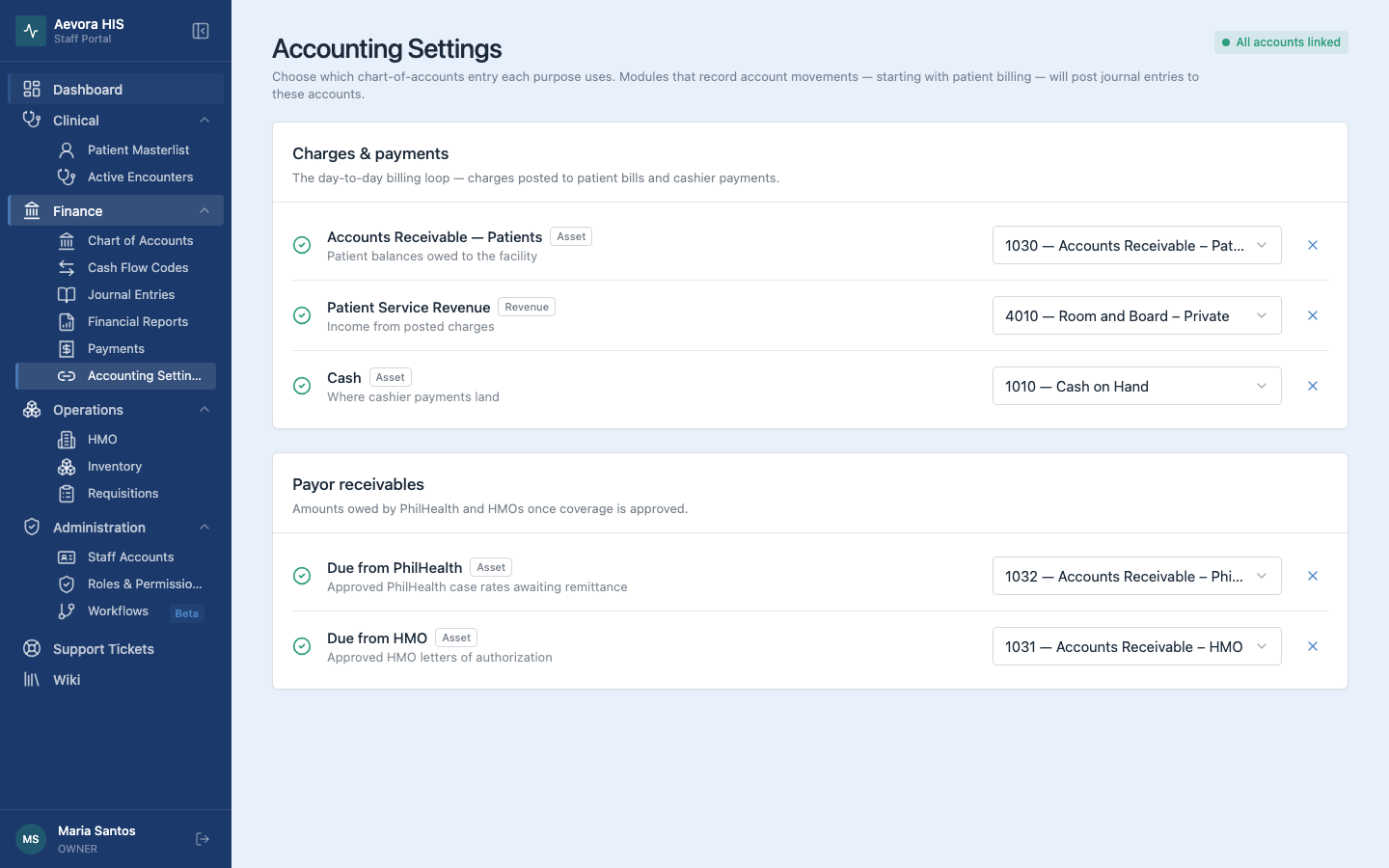
Managing bindings requires the Accounting Settings permissions (view / edit). Go to Finance → Accounting Settings.
Key Concepts
Section titled “Key Concepts”The Five Purposes
Section titled “The Five Purposes”| Purpose | What it’s for | Account type |
|---|---|---|
| Accounts Receivable — Patients | Patient balances owed to the facility | Asset |
| Patient Service Revenue | Income from posted charges | Revenue |
| Cash | Where cashier payments land | Asset |
| Due from PhilHealth | Approved PhilHealth case rates awaiting remittance | Asset |
| Due from HMO | Approved HMO letters of authorization | Asset |
The page groups them the way billing uses them: Charges & payments is the day-to-day loop (a charge moves Accounts Receivable and Revenue; a payment moves Cash and Accounts Receivable), and Payor receivables covers what PhilHealth and HMOs owe once coverage is approved. More purposes will appear here as other modules start recording account movements.
The Account Type Is Enforced
Section titled “The Account Type Is Enforced”Each purpose only accepts accounts of the right type — the dropdown for Patient Service Revenue lists only revenue accounts, and the receivable and cash purposes list only asset accounts. This prevents a binding that would put income on the balance sheet or a receivable on the income statement.
What Billing Posts
Section titled “What Billing Posts”Each billing event becomes one journal entry — a single debit and a single credit of the same amount, so every entry balances. Entries are created already posted (no draft step), dated at the moment of the event, and referenced by the case number or official receipt number:
| Event | Debit | Credit |
|---|---|---|
| Charge posted | Accounts Receivable — Patients | Patient Service Revenue |
| Payment received | Cash | Accounts Receivable — Patients |
| PhilHealth claim approved | Due from PhilHealth | Accounts Receivable — Patients |
| HMO authorization approved | Due from HMO | Accounts Receivable — Patients |
Voiding a charge posts a reversing entry (sides swapped) rather than editing or voiding the original — the ledger keeps both movements. A charge that was never journaled (posted before bindings were set) is not reversed.
Bindings Never Block Billing
Section titled “Bindings Never Block Billing”Billing works whether or not bindings are set — charges, payments, and statements are unaffected. While bindings are incomplete, staff who can open Accounting Settings see a reminder that journal entries aren’t being recorded yet — on the dashboard, the billing statement, and the Payments page. Activity from before the bindings were set is not journaled retroactively.
The Dashboard Reminder
Section titled “The Dashboard Reminder”The dashboard reminder can be dismissed for the whole facility — once one staffer dismisses it, it’s gone for everyone. The Staff can dismiss it toggle at the top of Accounting Settings controls this: turn it off to keep the reminder up for everyone until bindings are complete. Unbinding a purpose later brings it back. The billing statement and Payments notices ignore the toggle and always show while bindings are incomplete.
Bound Accounts Can’t Be Deleted
Section titled “Bound Accounts Can’t Be Deleted”An account that is bound to a purpose can’t be deleted from the Chart of Accounts until it is unbound here. This protects the ledger from losing an account that billing is about to post against.
Use Cases
Section titled “Use Cases”Binding an Account
Section titled “Binding an Account”- Go to Finance → Accounting Settings.
- Find the purpose and pick an account from its dropdown. The choice saves immediately — there is no separate save step.
- The chip in the page header tracks progress (“3 of 5 linked”) and turns green when every purpose is bound.
If a dropdown is empty, the facility has no accounts of the required type yet — create one in Chart of Accounts first.
Removing a Binding
Section titled “Removing a Binding”Click the ✕ button next to a linked account. The purpose returns to “Not linked” and the incomplete-bindings reminder reappears on the dashboard and billing pages.
Setting Up a New Facility
Section titled “Setting Up a New Facility”Create the ledger accounts first, then bind them. With the starter chart of accounts from Chart of Accounts, a typical mapping looks like:
| Purpose | Account |
|---|---|
| Accounts Receivable — Patients | 1030 · Accounts Receivable – Patients |
| Patient Service Revenue | 4010 · Room and Board – Private |
| Cash | 1010 · Cash on Hand |
| Due from PhilHealth | 1032 · Accounts Receivable – PhilHealth |
| Due from HMO | 1031 · Accounts Receivable – HMO |
Reference
Section titled “Reference”Permissions
Section titled “Permissions”Managing account bindings requires the accounting.settings permission (view / edit). Facility owners always have access. Dismissing the dashboard reminder needs view; changing whether it can be dismissed needs edit.