Journal Entries
Introduction
Section titled “Introduction”Journal entries are the atomic unit of accounting in Aevora. Every financial event — a patient payment, a supplier invoice, a payroll disbursement, a PhilHealth claim receipt — is recorded as a journal entry. Understanding how they work is essential for anyone with access to the Finance module.
Key Concepts
Section titled “Key Concepts”Double-Entry Bookkeeping Primer
Section titled “Double-Entry Bookkeeping Primer”Every journal entry must have equal debits and credits. This is not optional — the system will not allow you to post an entry that is out of balance.
The rule is:
- Debit increases assets and expenses; decreases liabilities, equity, and revenue.
- Credit increases liabilities, equity, and revenue; decreases assets and expenses.
Example — Patient pays PHP 2,500 cash for an OPD consultation:
| Account | Debit | Credit |
|---|---|---|
| Cash on Hand (1001) | PHP 2,500 | |
| OPD Consultation Fees (4001) | PHP 2,500 |
Cash (an asset) increases → debit. Revenue increases → credit. Debits = Credits = PHP 2,500. ✓
Example — Facility receives a supplier invoice for PHP 15,000 in medical supplies:
| Account | Debit | Credit |
|---|---|---|
| Medical Supplies Inventory (1200) | PHP 15,000 | |
| Accounts Payable (2001) | PHP 15,000 |
Inventory (an asset) increases → debit. AP (a liability) increases → credit. ✓
Draft vs. Posted
Section titled “Draft vs. Posted”| State | Editable | Creates ledger movements | Appears in reports |
|---|---|---|---|
| Draft | Yes | No | No |
| Posted | No | Yes | Yes |
Save as draft when you’re waiting for supporting documents, a supervisor needs to review the entry first, or you’re entering several related entries and want to review the batch before committing. Post when you’re confident the entry is correct and complete. Posted entries cannot be edited — to correct one, create a reversing entry.
Use Cases
Section titled “Use Cases”Creating a Journal Entry
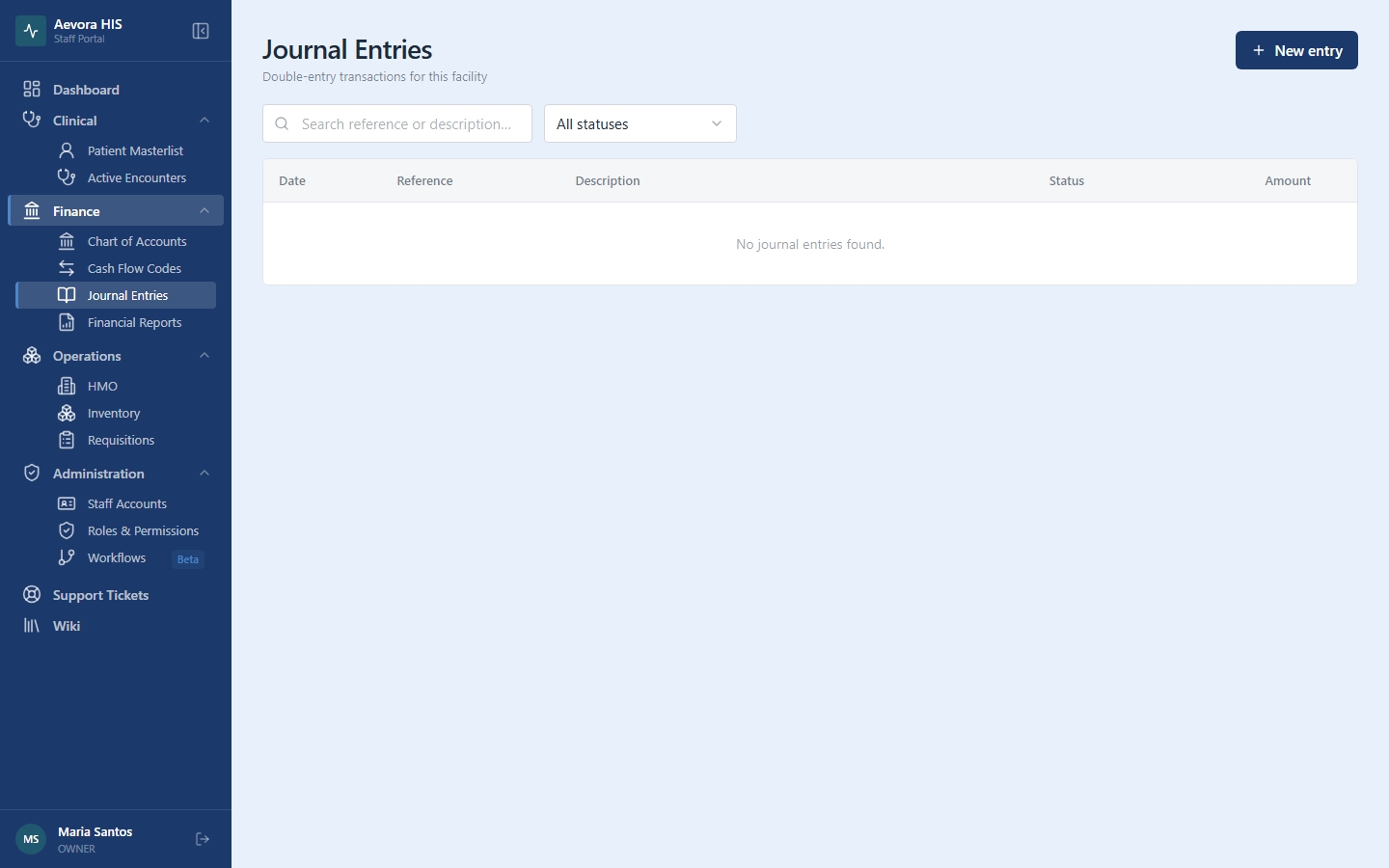
Section titled “Creating a Journal Entry”- Go to Finance → Journal Entries.
- Click New Entry.
- Fill in the header fields:
| Field | Description |
|---|---|
| Transaction date | The date the transaction occurred — pre-filled with today, but you can change it |
| Reference number | Optional; use for OR numbers, check numbers, invoice numbers |
| Description | A brief narrative of what the entry records (required) |
The entry date — the day the entry was recorded in Aevora — is captured automatically and shown alongside the transaction date in the entries list and when viewing an entry.
-
Add line items:
- Click Add Line.
- Select the account from the dropdown (searches by code or name).
- Enter either a debit or credit amount — not both.
- Add a line description if the line differs from the header description.
- Repeat for each account affected.
-
The running Debit Total and Credit Total are shown at the bottom. They must be equal before you can post.
-
Click Save as Draft to save without posting, or Post to finalize.
Reversing a Posted Entry
Section titled “Reversing a Posted Entry”- Open the entry you want to reverse.
- Click Actions → Reverse.
- Enter the reversal date — this is typically the same date as the original entry, or the first day of the current period.
- Add a reason (required) — this is included in the audit trail.
- Click Confirm Reverse.
Aevora creates a new entry with all debits and credits swapped. Both the original and the reversal entry are linked and visible in each other’s records.
If the original entry was only partially wrong, post the reversal and then post a new corrected entry.
Voiding an Entry
Section titled “Voiding an Entry”To cancel an entry without deleting it:
- Open the entry, or click the void (⊘) icon on its row in the entries list.
- Click Void.
- Enter a reason for voiding (required) — this is kept in the audit trail.
- Click Void entry.
The entry stays in the ledger marked Voided and can no longer be edited or posted. Voided entries are excluded from financial reports. The reason is shown when you open the entry, and who voided it and when are recorded.
Closing an Accounting Period
Section titled “Closing an Accounting Period”At the end of each accounting period (typically month-end):
- Review all draft entries and either post or discard them.
- Reconcile bank accounts and AR sub-ledgers.
- Post any accruals or prepaid adjustments.
- Run the Trial Balance report to verify total debits = total credits.
- Generate the Income Statement and Balance Sheet for management review.
Once a period is closed in Aevora (by an administrator), entries can no longer be posted into that period. This prevents retroactive changes to finalized financial statements.
Reference
Section titled “Reference”Common Entry Types
Section titled “Common Entry Types”Patient Cash Payment
| Account | Debit | Credit |
|---|---|---|
| Cash on Hand | PHP amount | |
| Accounts Receivable — Private Pay | PHP amount |
Use the AR account if a balance existed; use Revenue directly for same-day full payments at OPD.
PhilHealth Claim Receipt (when PhilHealth reimburses a claim)
| Account | Debit | Credit |
|---|---|---|
| Cash in Bank — Operating | PHP reimbursement | |
| Accounts Receivable — PhilHealth Claims | PHP reimbursement |
HMO Claim Receipt
| Account | Debit | Credit |
|---|---|---|
| Cash in Bank — Operating | PHP reimbursement | |
| Accounts Receivable — HMO Claims | PHP reimbursement |
Supplier Invoice (Medical Supplies)
| Account | Debit | Credit |
|---|---|---|
| Medical Supplies Inventory | PHP invoice amount | |
| Accounts Payable | PHP invoice amount |
Supplier Payment
| Account | Debit | Credit |
|---|---|---|
| Accounts Payable | PHP amount paid | |
| Cash in Bank — Operating | PHP amount paid |
Payroll Disbursement
| Account | Debit | Credit |
|---|---|---|
| Salaries Expense | Gross amount | |
| SSS Contributions Payable | SSS share | |
| PhilHealth Contributions Payable | PhilHealth share | |
| Pag-IBIG Contributions Payable | Pag-IBIG share | |
| Withholding Tax Payable | Tax withheld | |
| Cash in Bank — Payroll | Net pay |
Searching and Filtering
Section titled “Searching and Filtering”From the Journal Entries list, you can filter by:
- Date range — period-based view for month-end review
- Status — Draft or Posted
- Account — all entries touching a specific account
- Reference number — find by OR, check, or invoice number
- Posted by — audit trail by staff member
Audit Trail
Section titled “Audit Trail”Every journal entry records the staff member who created it, the staff member who posted it (may differ), the date and time of creation and posting, who voided it and why, and any reversals linked to it. This trail is permanent and cannot be edited or deleted — it satisfies the audit requirements of the Bureau of Internal Revenue (BIR) and external financial auditors.
Permissions
Section titled “Permissions”Managing journal entries requires the journal-entries permission (view / create / update / post / void).