Item Requisitions
Introduction
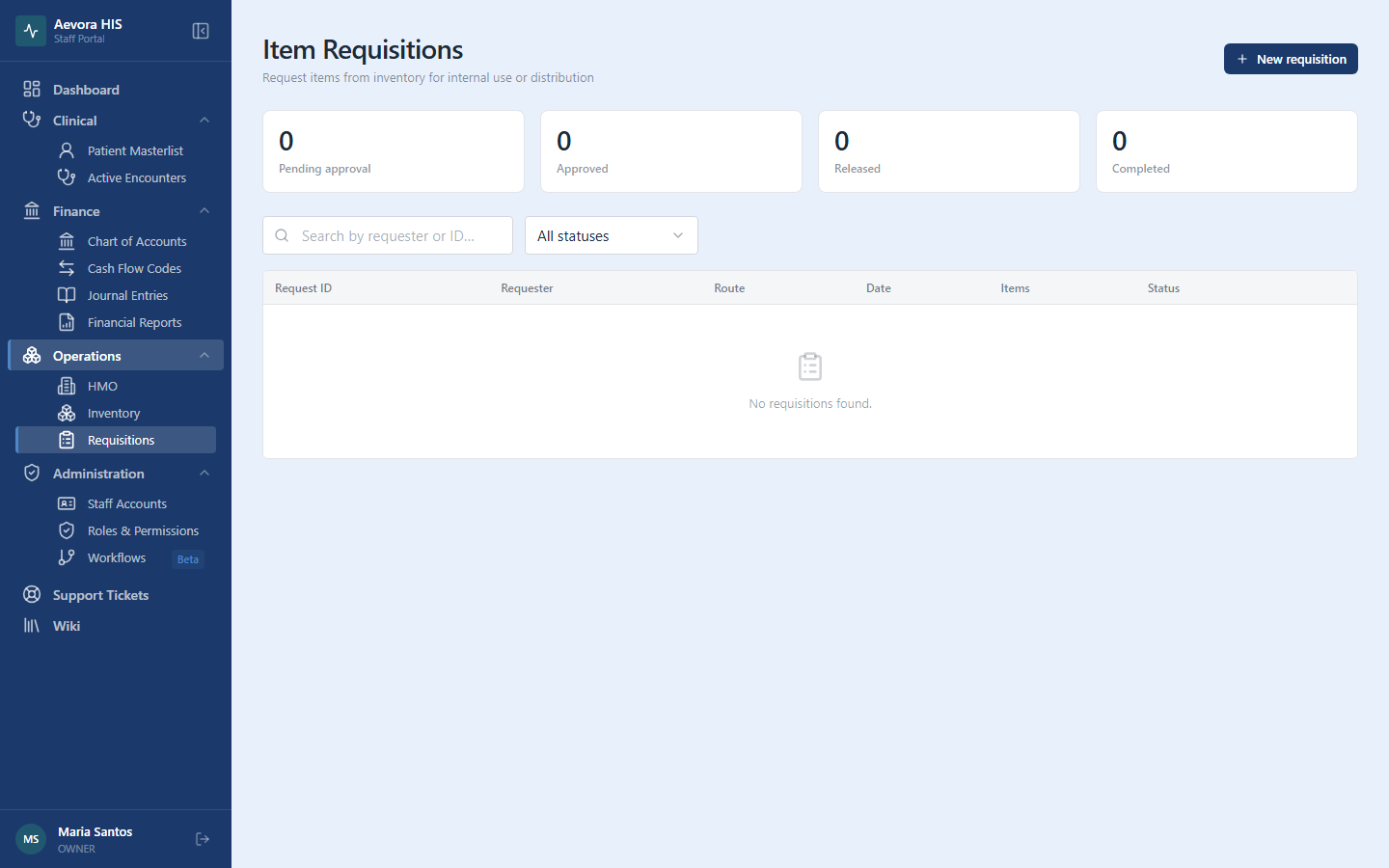
Section titled “Introduction”An Item Requisition is a formal internal request to move stock from one department’s inventory to another — for example, a ward requesting gauze and syringes from central supply. Unlike a direct inventory adjustment, a requisition goes through a request-and-approval flow before any stock actually moves.
Requisitions can also be created automatically by the system when a physician submits an Encounter Requisition — see Auto-Routing to Departments.
Key Concepts
Section titled “Key Concepts”Requisition Lifecycle
Section titled “Requisition Lifecycle”A requisition moves through six states, in order:
Draft ──▶ Pending ──▶ Approved ──▶ Released ──▶ Completed └─▶ Rejected| Status | Meaning |
|---|---|
| Draft | Being prepared by the requesting department; not yet visible to the releasing department |
| Pending | Submitted and awaiting a decision from the releasing department |
| Approved | Releasing department has approved the request but stock hasn’t moved yet |
| Rejected | Releasing department declined the request, with a reason |
| Released | Stock has been deducted from the releasing department’s inventory |
| Completed | The requesting department has confirmed receipt |
| Cancelled | The originating encounter requisition was cancelled while this requisition was still Draft or Pending |
Requesting vs. Releasing Department
Section titled “Requesting vs. Releasing Department”Every requisition has a from department (releasing stock) and a to department (requesting stock). Draft requisitions are only visible to the requesting department; once submitted, both departments can see it. A staff member cannot approve or reject their own requisition, and only staff in the releasing department (or an OWNER-level role) can approve, reject, or release one.
Stock Reservation
Section titled “Stock Reservation”The moment a requisition becomes Pending — whether submitted manually or auto-generated from an encounter requisition — the quantity on each line is reserved against its item: pulled out of that item’s available quantity so it can’t be routed to or released against a different requisition while this one is still outstanding. This is what guarantees stock requested for a specific patient stays earmarked for that patient instead of being claimed by whichever requisition happens to release first.
The reservation is released back to available stock if the requisition is Rejected or Cancelled, and is consumed (moved from reserved into an actual on-hand deduction) as each line is released — partially if only part of a line is released at a time.
Use Cases
Section titled “Use Cases”Creating a Requisition
Section titled “Creating a Requisition”- Go to Operations → Requisitions.
- Click New Requisition.
- Enter the requester name, purpose, the from and to departments, and add one or more line items with the item and quantity requested.
- Click Save as Draft to keep working on it, or Submit to send it straight to Pending.
A requisition cannot be submitted with zero line items.
Approving or Rejecting a Requisition
Section titled “Approving or Rejecting a Requisition”Staff in the releasing department review Pending requisitions:
- Open the requisition.
- Click Approve to move it to Approved, or Reject and enter a reason to decline it.
Releasing an Approved Requisition
Section titled “Releasing an Approved Requisition”- Open an Approved requisition.
- Click Release.
Aevora checks that enough stock is still available for every line, then deducts it from the releasing department’s inventory in one transaction — each line gets a Requisition Release inventory adjustment, and the requisition moves to Released. If stock has dropped below what’s needed since the requisition was approved, the release is blocked with an insufficient-stock error naming the item.
Marking a Requisition Complete
Section titled “Marking a Requisition Complete”Once the requesting department has received the released stock, open the requisition and click Mark Complete.
Deleting a Draft Requisition
Section titled “Deleting a Draft Requisition”Only a requisition still in Draft can be deleted. Open it and click Delete — once submitted, a requisition can only move forward through the lifecycle (or be rejected), not be removed.
Reference
Section titled “Reference”Permissions
Section titled “Permissions”| Action | Permission |
|---|---|
| View requisitions | requisition → view |
| Create, edit, submit, or complete | requisition → create |
| Approve or reject | requisition → approve |
| Release | requisition → release |
| Delete a draft | requisition → delete |